1
Open the sign-in page
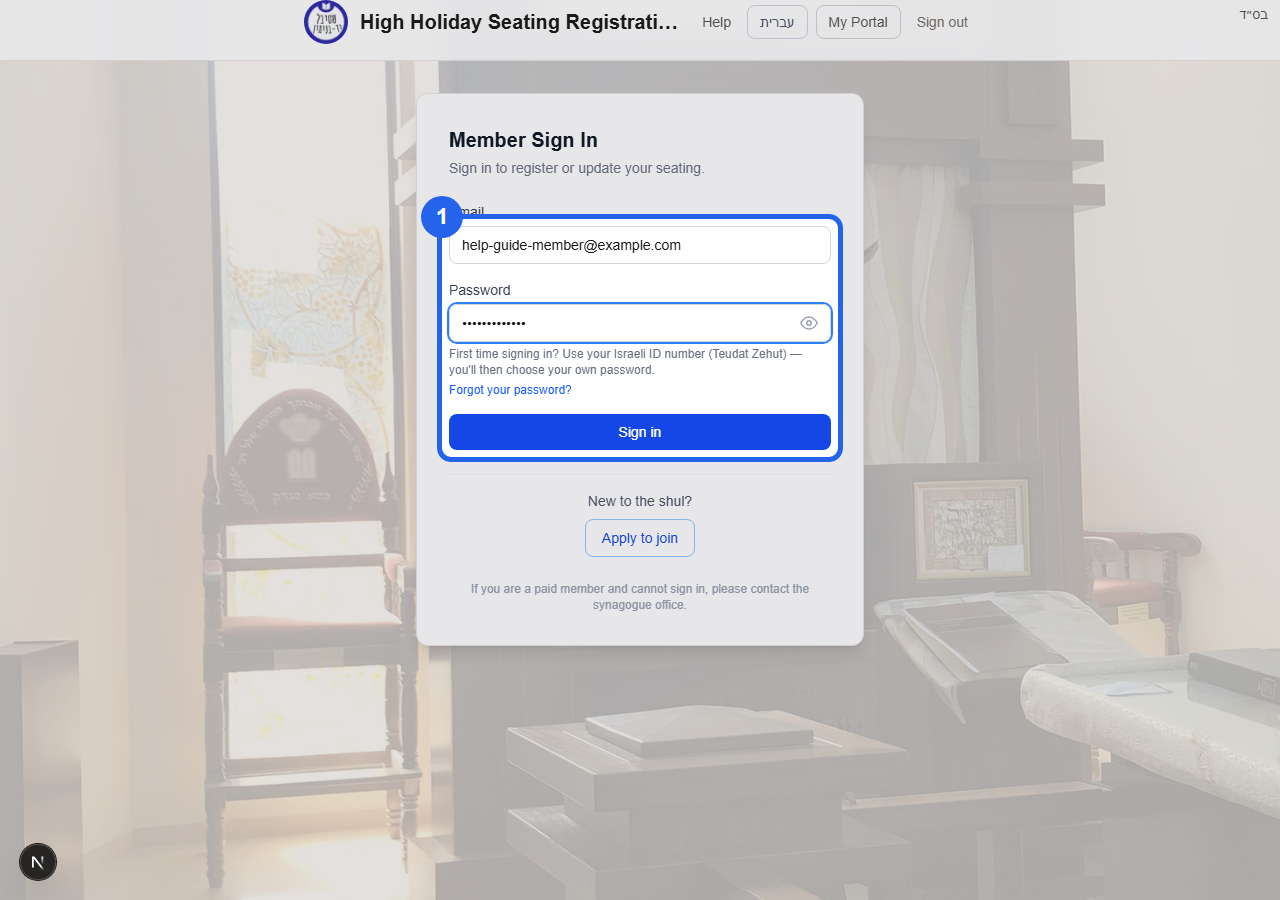
Go to the seating website and open the member sign-in page. Enter the email address registered with the shul.
Email field on the sign-in page

Help & FAQ
Simple step-by-step help for signing in, registering for seats, updating household information, changing seat requests, and understanding pricing.
The PDF versions include the same sections and screenshots for offline reference.
Start here if this is your first time using the seating website, or if you are not sure how to get into your account.
Go to the seating website and open the member sign-in page. Enter the email address registered with the shul.
Email field on the sign-in page
For first-time sign-in, use your ID number as the password unless the office gave you different instructions. If you already chose a password, use that password.
Password / ID number field
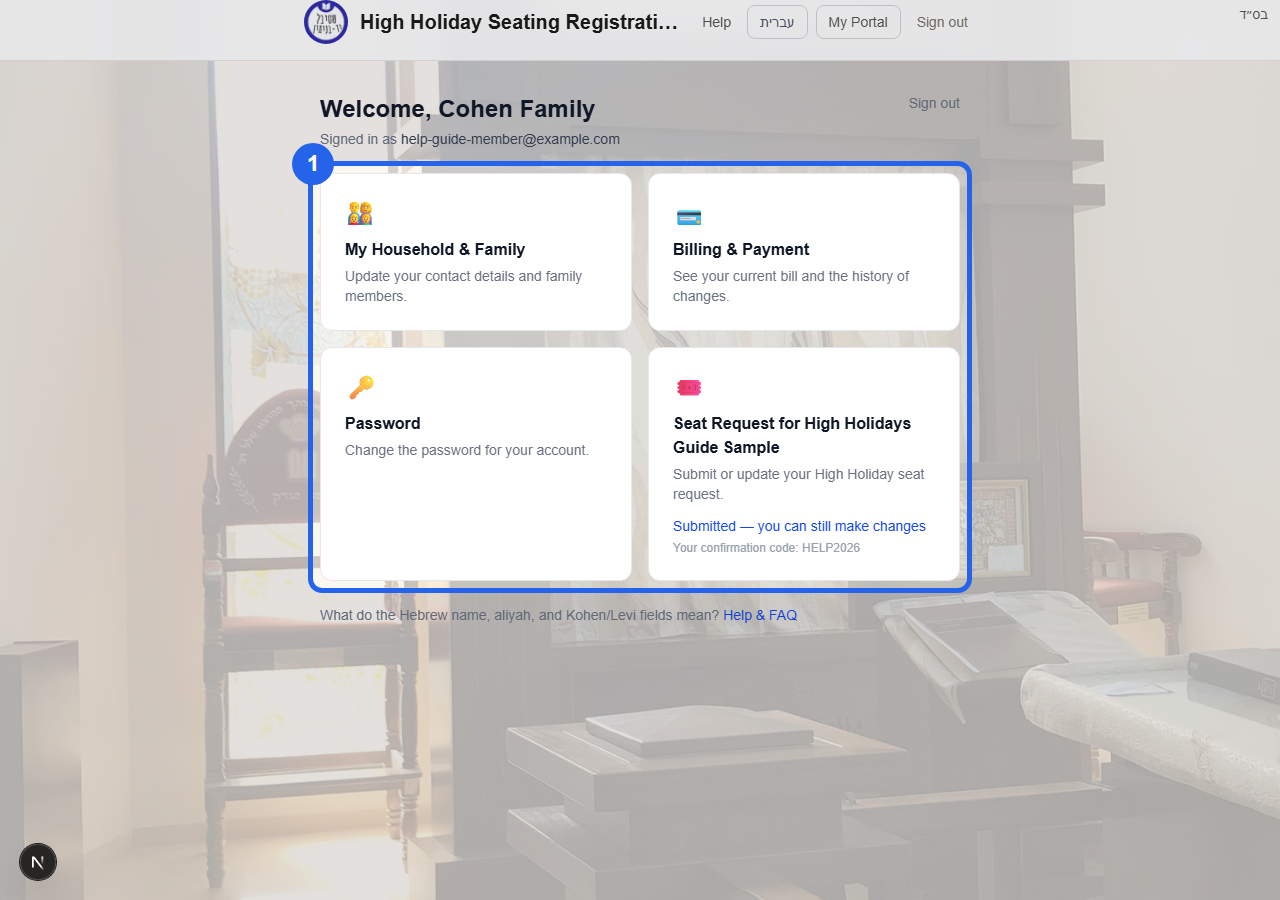
After signing in, you will arrive at My Portal. This is the main page where you choose what you want to do.
My Portal main menu
Use this section when you are submitting your High Holiday seat request for the first time.
After signing in, find the Seat Request card on My Portal. Click it to open the seat registration form.
Seat Request card
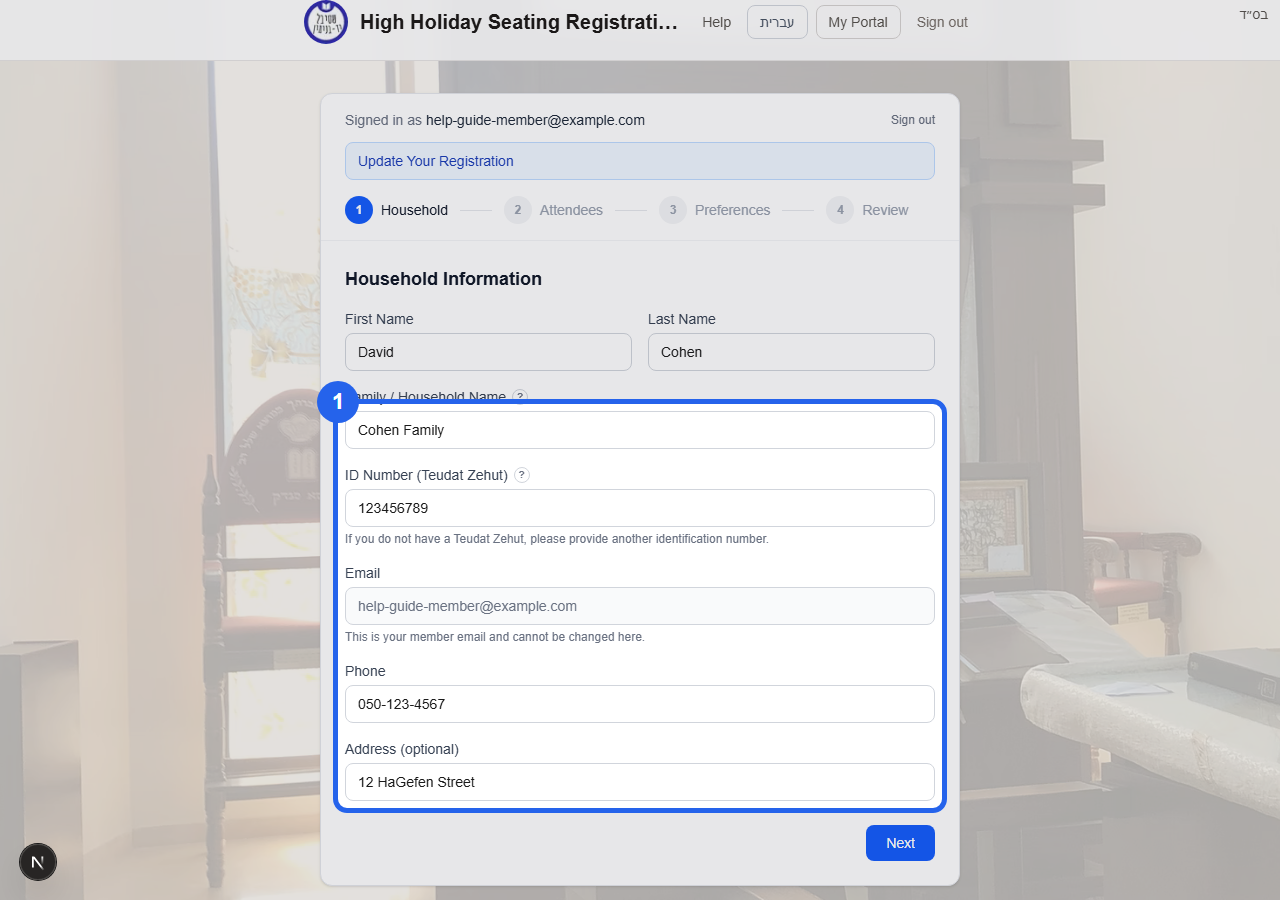
Review the household name, ID number, phone, address, and email. The email is locked because it is used for signing in.
Household information fields
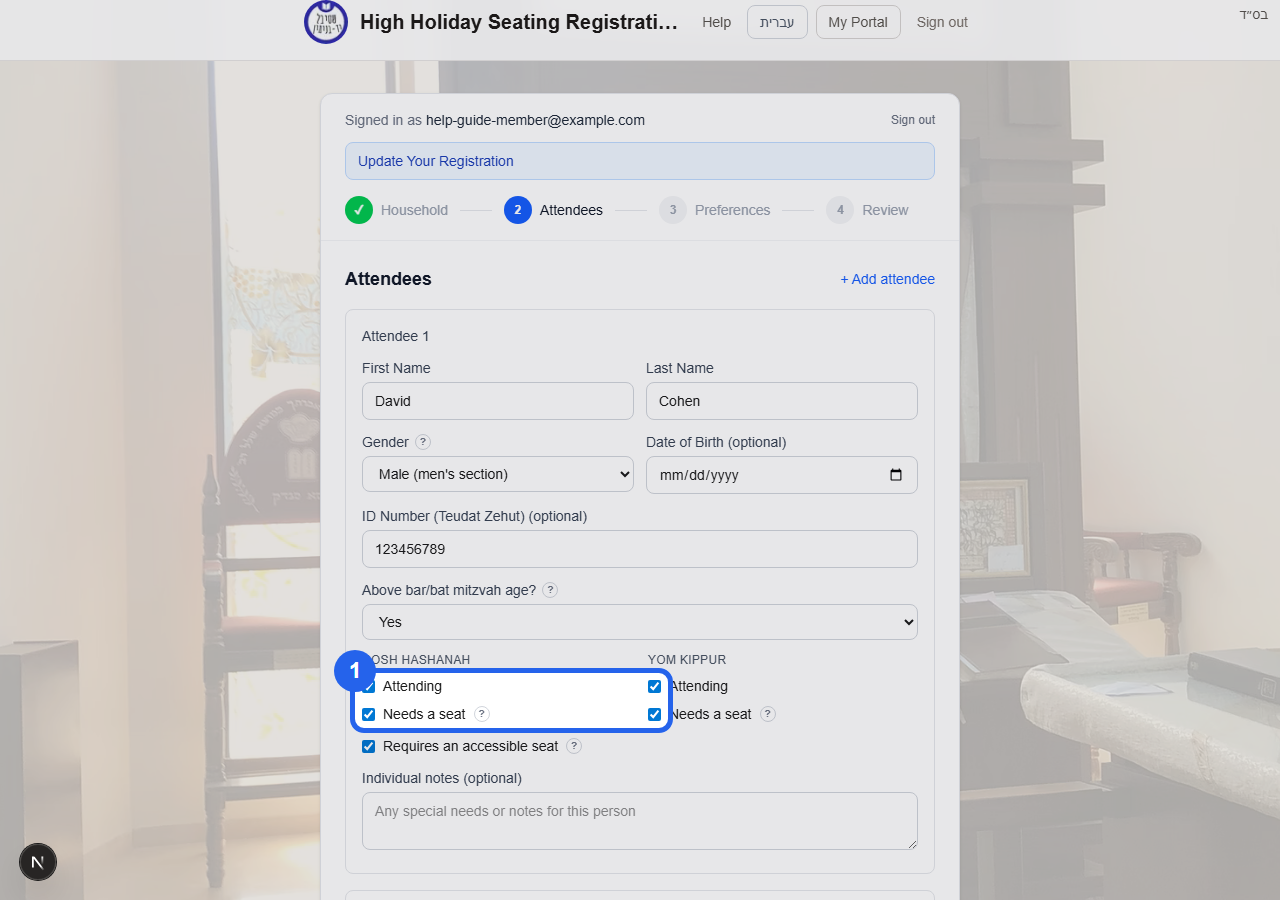
For each person, check “Needs a seat” for Rosh Hashanah and/or Yom Kippur. A small child who comes but sits with a parent doesn't need their own seat — leave it unchecked and mention it in the notes.
Needs a seat checkbox for each holiday
Choose Married Couple or Family membership. Then choose any seating preferences, such as same area, back, near entrance, or neighborhood. Preferences are requests, not guarantees.
Membership and seating preferences
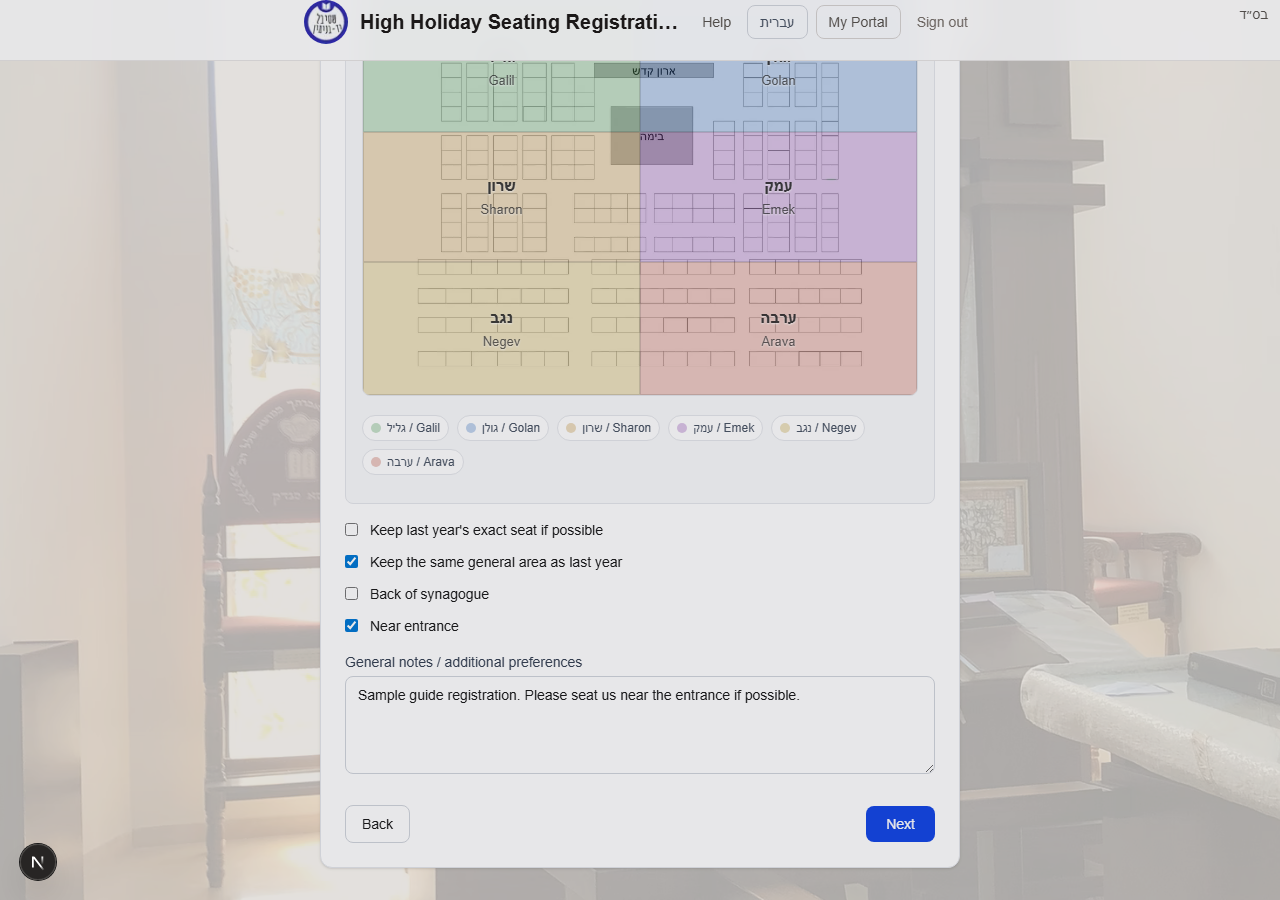
Read the final review page, check the privacy box, and click Submit Registration. Save the confirmation code shown after submission.
Privacy checkbox and Submit Registration button
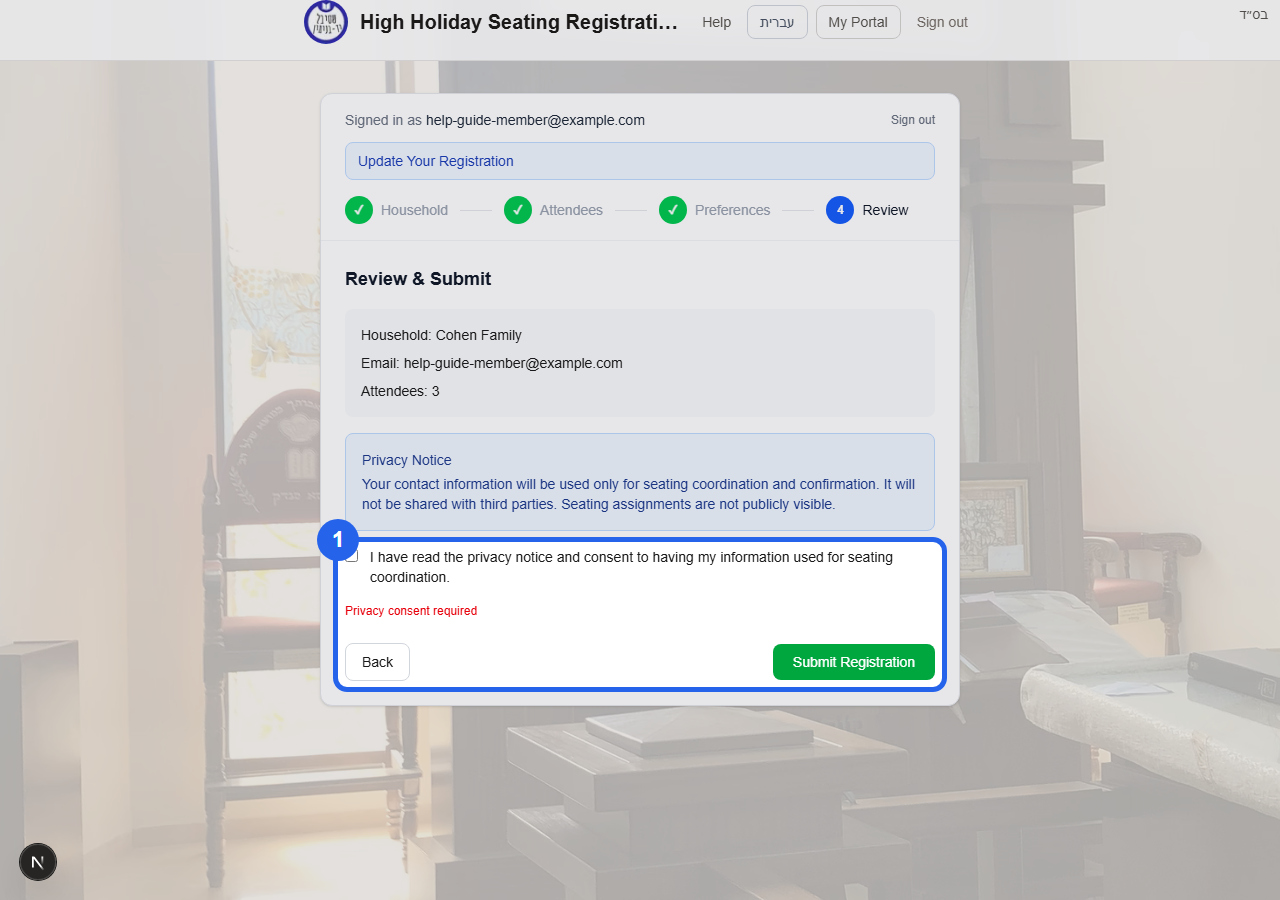
Use My Household & Family when you need to update contact information, family members, Hebrew names, aliyah details, or yahrzeits.
Go back to the website, sign in, and click the My Household & Family card on My Portal.
My Household & Family card
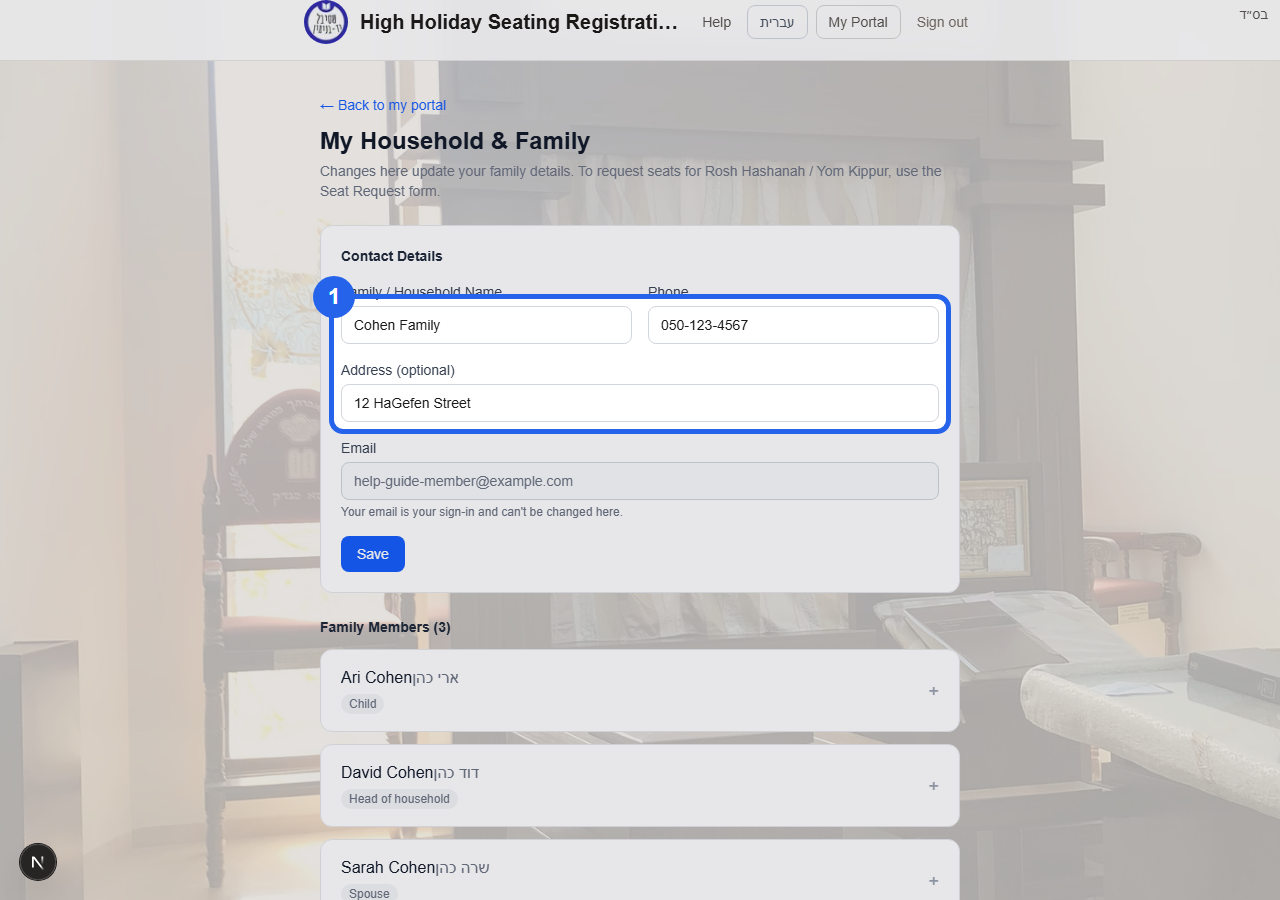
Change the household display name, phone, or address. Then click Save. Your email stays locked because it is your sign-in email.
Contact Details form and Save button
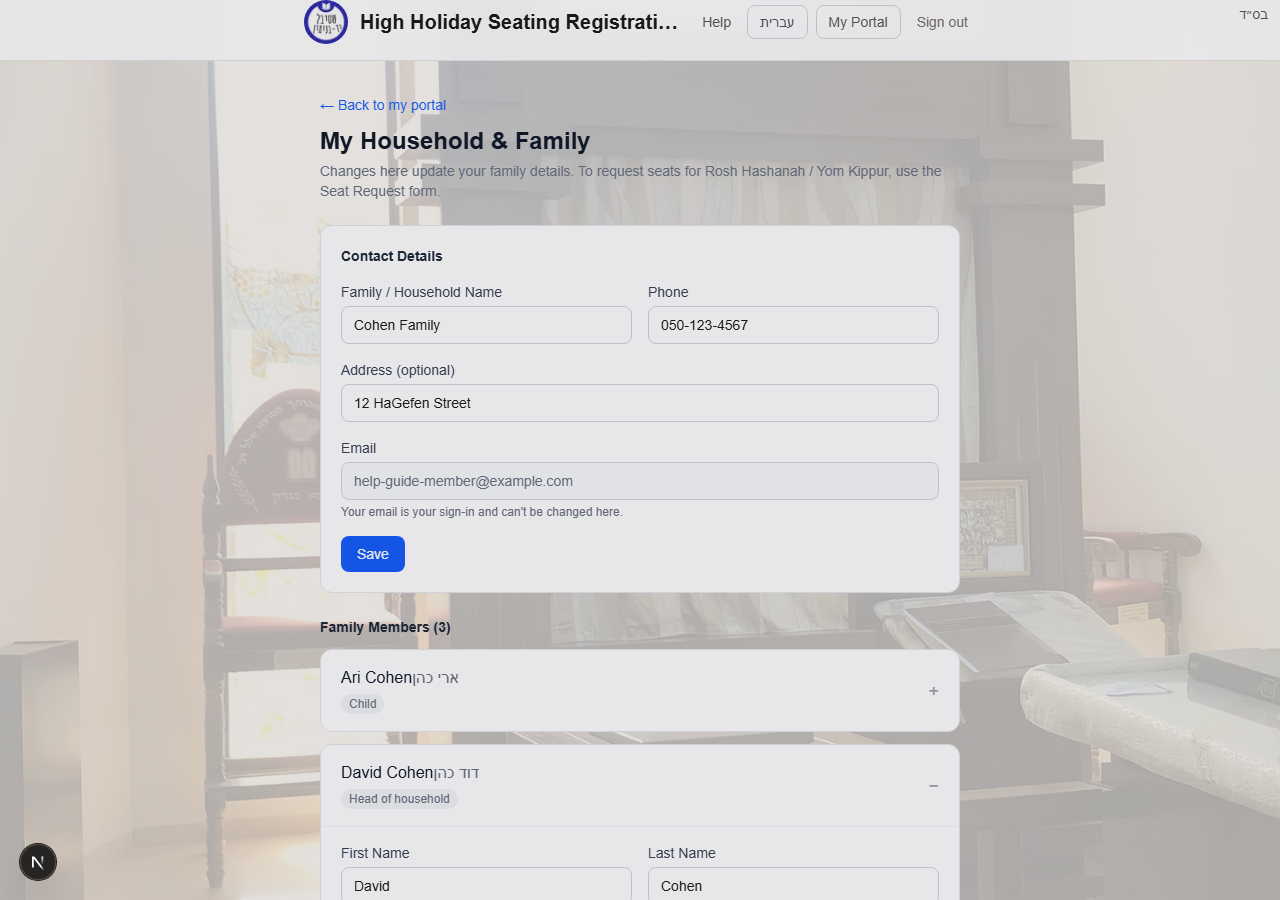
Open a person card to edit names, relation, men's/women's section, birthdays, aliyah name, Kohen/Levi status, or accessibility needs.
Expanded family member card
Use Add family member for a spouse, child, or other household member. After adding someone, update the seat request separately if they need a seat this year.
Add family member form
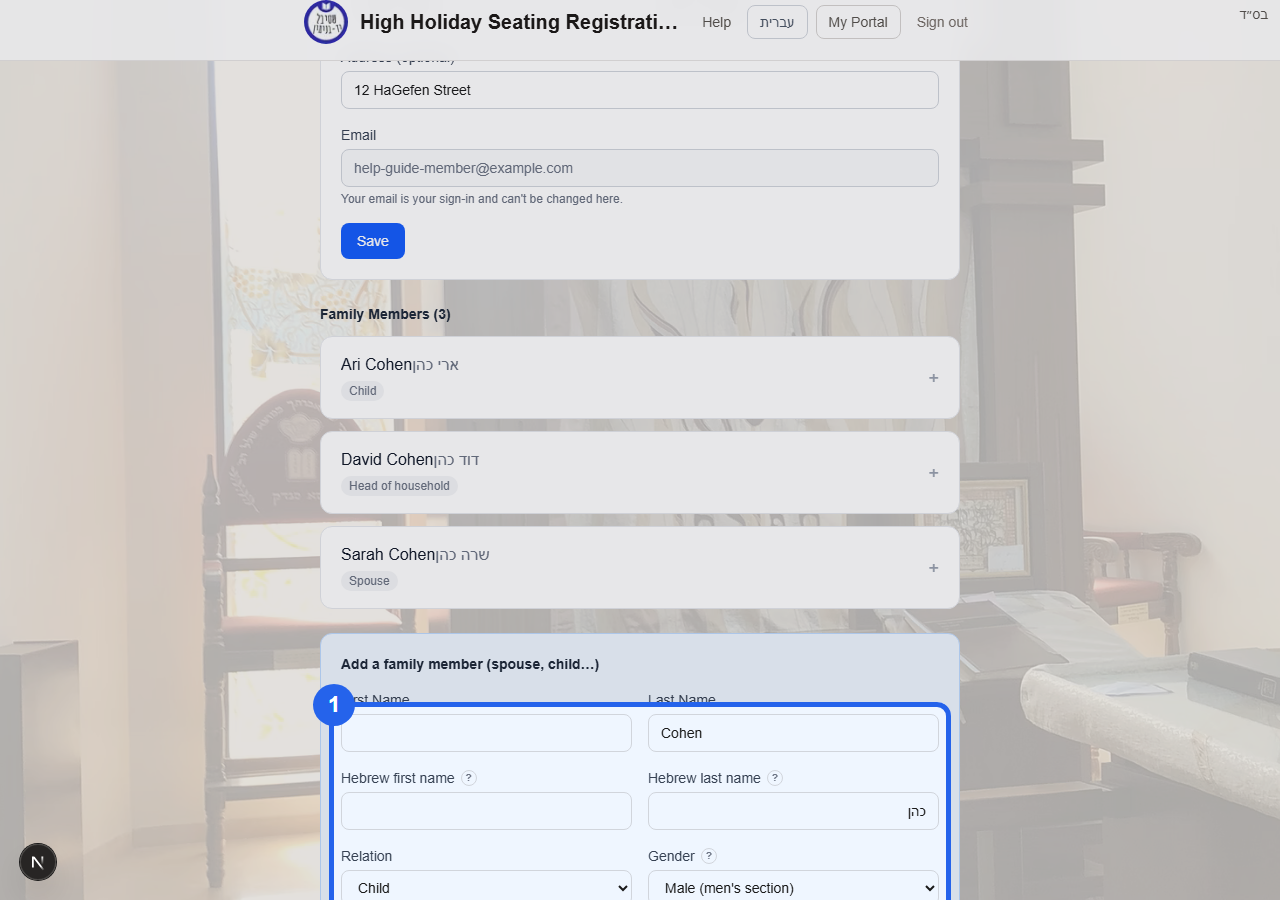
Use the Memorial / Yahrzeit section to record the name, relationship, and Hebrew date for a parent or loved one.
Memorial / Yahrzeit section
Use this section if you already submitted a seat request and need to change who is coming, who needs a seat, your preferences, or your notes.
Go to My Portal and click the Seat Request card again. If it says Submitted, you can still open it while registration is open.
Submitted Seat Request card
Use Next to go through the same form again. Change attendees, who needs a seat for each holiday, membership type, preferences, or notes.
Attendee and seat-needed choices
Even if you changed only one thing, continue through the form until you reach Review & Submit.
Review & Submit step
Check the privacy box and click Submit Registration. This updates the existing request; it does not create a second request.
Submit Registration saves the update
Use this section to understand what the registration and billing pages are showing.
Married Couple membership is ₪2,150. Family membership is ₪2,700. Both include 2 seats at no additional charge.
Membership type and included seats
Each additional person who needs a seat costs ₪250. A person attending both Rosh Hashanah and Yom Kippur counts once for additional-seat pricing.
Additional seats line and holiday seat counts
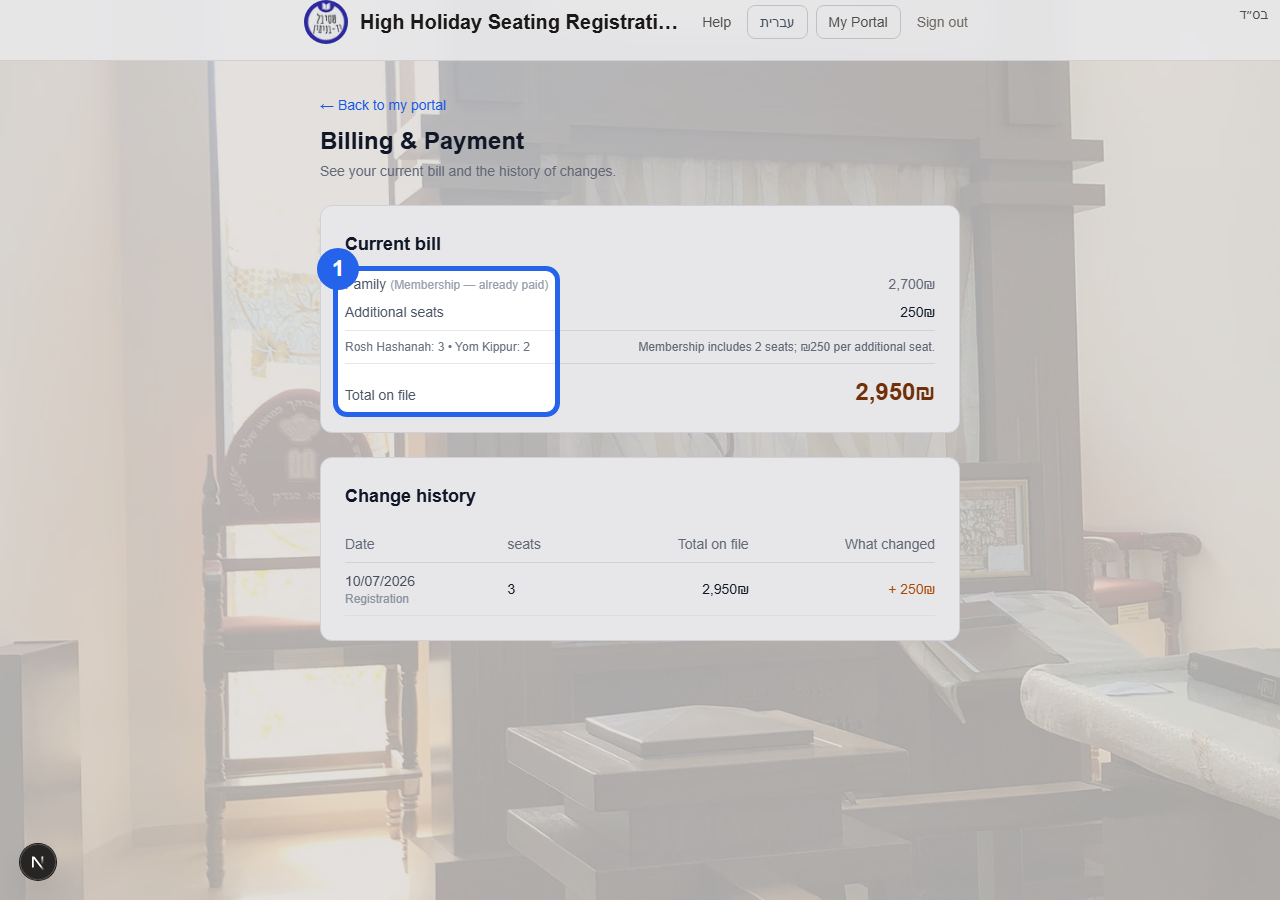
Open Billing & Payment from My Portal to see membership fee, additional-seat charge, Rosh Hashanah and Yom Kippur seat counts, total on file, and pricing history.
Current bill and pricing history
Answers to common questions about registering and managing your seats.
Use your email address. The first time, your password is your Israeli ID number (Teudat Zehut); you'll then choose your own password. Forgot it? Use “Forgot your password?” on the sign-in page.
Three things: update your household and family details, change your password, and submit or update your seat request for the coming holidays.
Open “My Household & Family”. Each person has their own card where you can edit their details, and you can add or remove family members. Changes here update your records only — to ask for seats, use the seat request.
Open the seat request and follow the four steps: your household, who needs a seat (separately for Rosh Hashanah and Yom Kippur), your seating preferences, and a final review. You'll get a confirmation code and can edit your request any time while registration is open.
No — preferences are requests we try our best to honour, subject to space. Add anything specific in the notes box.
You can record the Hebrew date of passing of a parent or loved one, so the shul can note the yahrzeit each year.
If your shul charges for seats, you'll see a cost summary after registering. You can pay securely online or by bank transfer — include your ID number (TZ) as the reference.
These optional details help the gabbai and office beyond seating — for aliyahs to the Torah and Hebrew records. Hover the “?” next to any field for a short explanation.
Still stuck? Contact the synagogue office and we'll be glad to help.